
Print for Figma —export print-ready PDFswith CMYK, bleed, and ICC.
Printery is the Figma print plugin for designers who need CMYK PDF export, ICC profiles, bleed, crop marks, and 300 DPI output—without rebuilding files in InDesign.

Rated ★ 4.8/5 on Figma Community · Used for brochures, catalogs & more
Print from Figma with real production export controls
Everything you need to print from Figma properly: CMYK conversion, ICC profiles, bleed, crop marks, DPI control, and print-ready PDF export in one workflow.

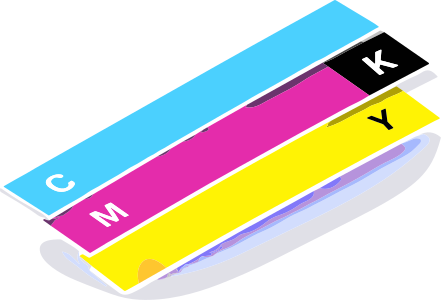
CMYK PDF Export
Export true CMYK PDFs directly from Figma.

RGB to CMYK Mapping
Control how brand colors convert for consistent output.
ICC Profile Support
Embed profiles like ISO Coated v2, FOGRA39, and more.
Pantone Spot Colors
Use spot colors with density control for brand-critical jobs.
Overprint Control
Set fill and stroke overprint where press behavior matters.

Bleed & Crop Marks
Add 3mm, 5mm, or custom bleed plus crop marks in one click.

DPI Control
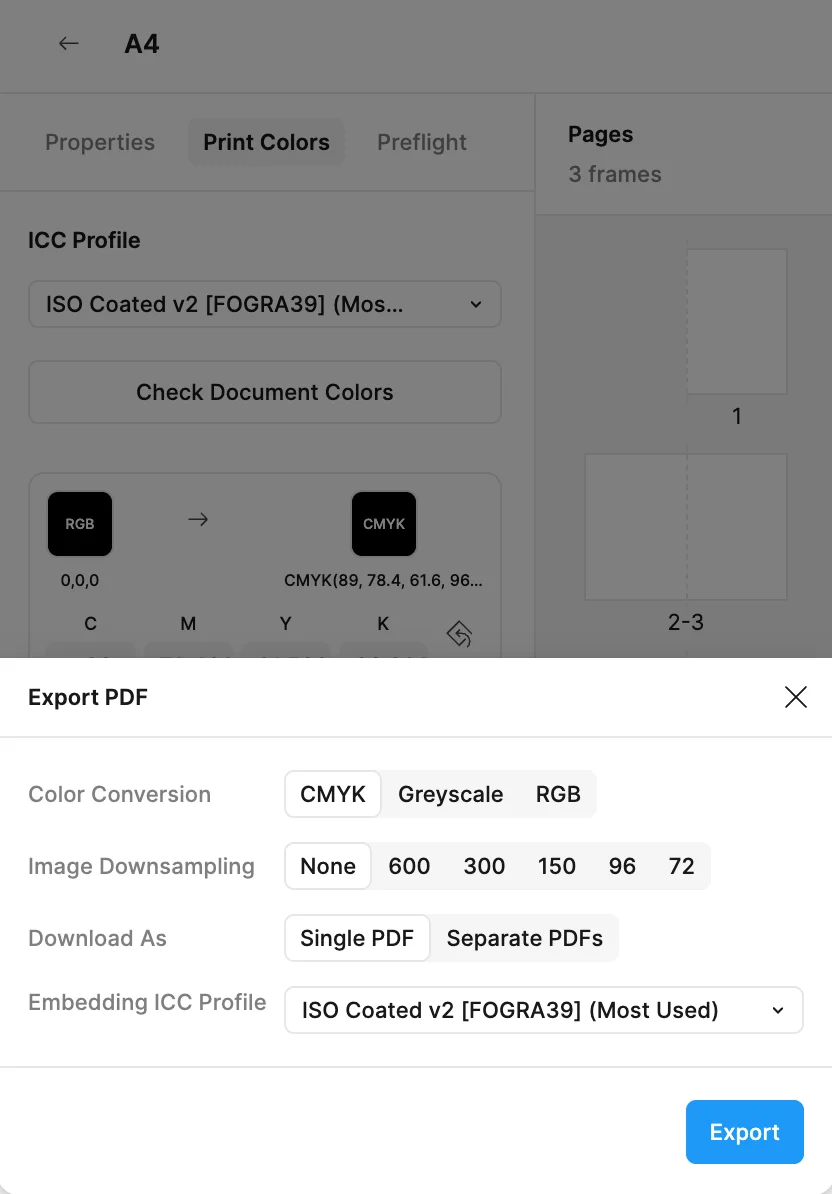
Export at 72/150/300 DPI and downsample images.

Multi-Page & Batch
Export full documents, spreads, and multiple frames at once.
Perfect for: brochures, catalogs, packaging, posters, and marketing materials.
Live Demo
See Print for Figma in Action
Watch how Printery transforms your Figma designs into print-ready masterpieces.
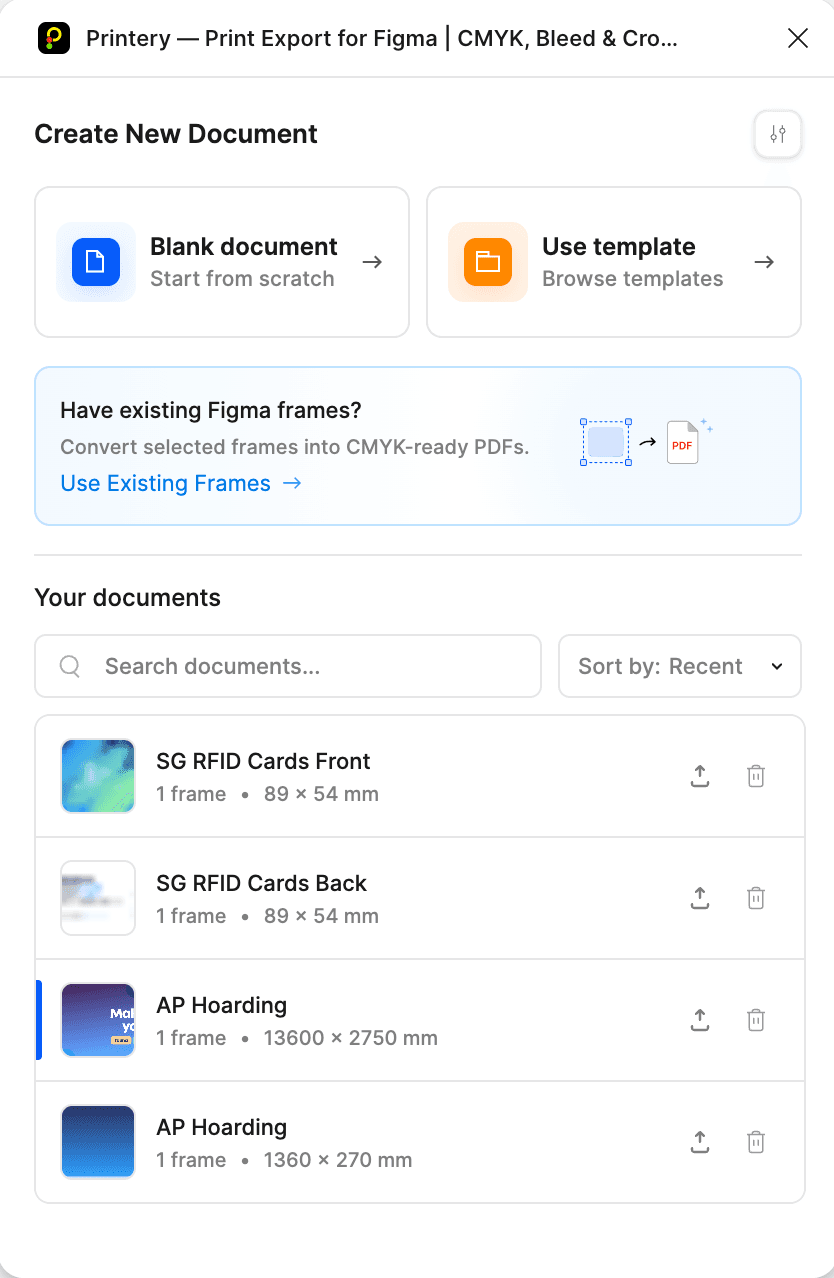
Document Presets
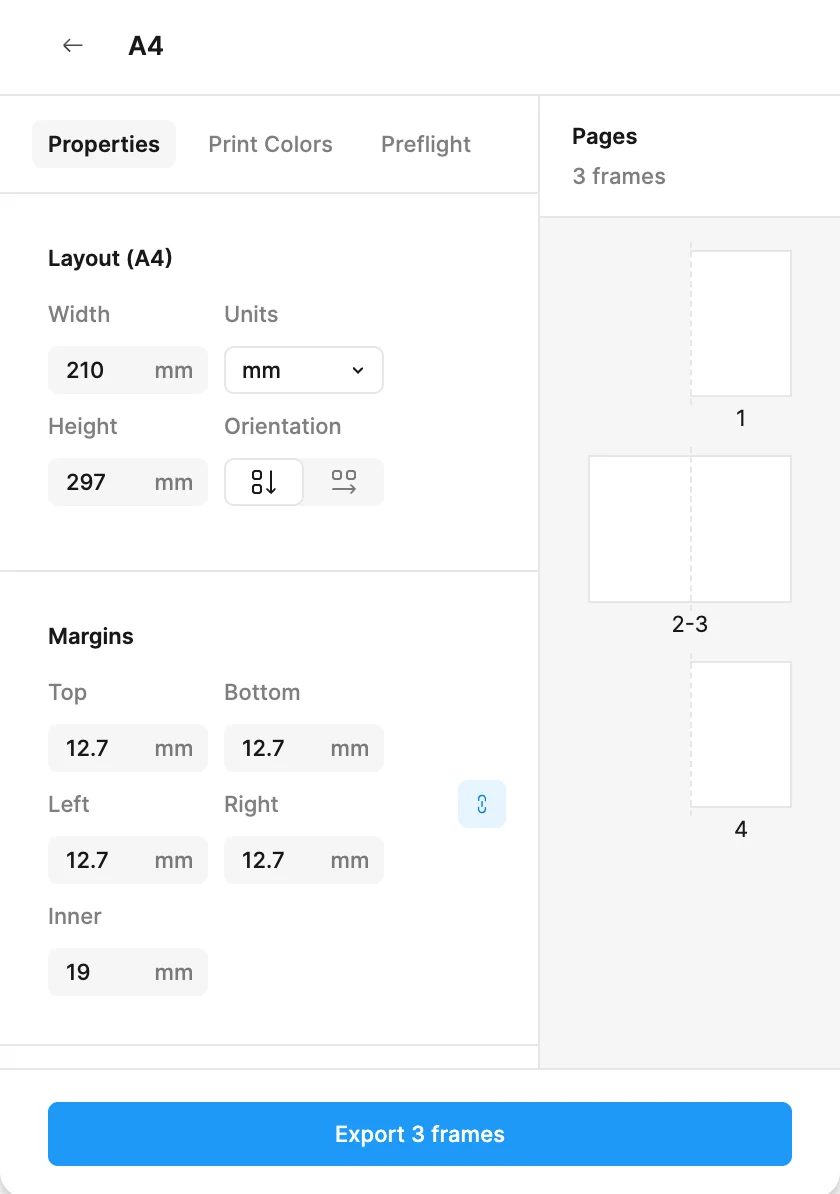
Create print-ready documents with preset sizes, bleed, and crop marks
Why designers choose Printery to print from Figma
Figma is built for digital design, but print production needs extra export controls. Printery adds the essentials—so you can deliver printer-ready files straight from Figma.

Screen-first exports aren't print-ready
CMYK PDFs + RGB→CMYK mapping + ICC embedding for professional output.

Production PDFs need bleed and crop marks
Add bleed & crop marks in one click for print-ready files.

Print workflows require more than basic PDF export
Spot colors/Pantone + overprint + ICC-managed output for professional results.

Export → fix → re-export wastes time
Print-ready output directly from Figma—no InDesign needed.
Who Uses Printery?
From solo designers to enterprise marketing teams, Printery helps anyone who needs to export PDFs for printing directly from Figma.

Designers
Create print-ready brochures, posters, and packaging from Figma.

Print Shops
Receive files with correct bleed, crop marks, and color profiles.

Marketing
Produce flyers, catalogs without waiting for design handoff.

Agencies
Deliver print files to clients faster with streamlined exports.
Print Design for Figma: Color & CMYK Control
When color accuracy matters, Printery gives you color management and press-ready control directly inside Figma.
- ✓Export true CMYK PDFs for professional print workflows.
- ✓Map RGB colors to CMYK values for predictable brand output.
- ✓Embed ICC profiles required by your printer or region.
- ✓Work with Pantone spot colors for packaging and identity jobs.
Best for: brand systems, packaging, catalogs, and prepress workflows.Learn more →
Print from Figma with Bleed, Crop Marks, and Press Setup
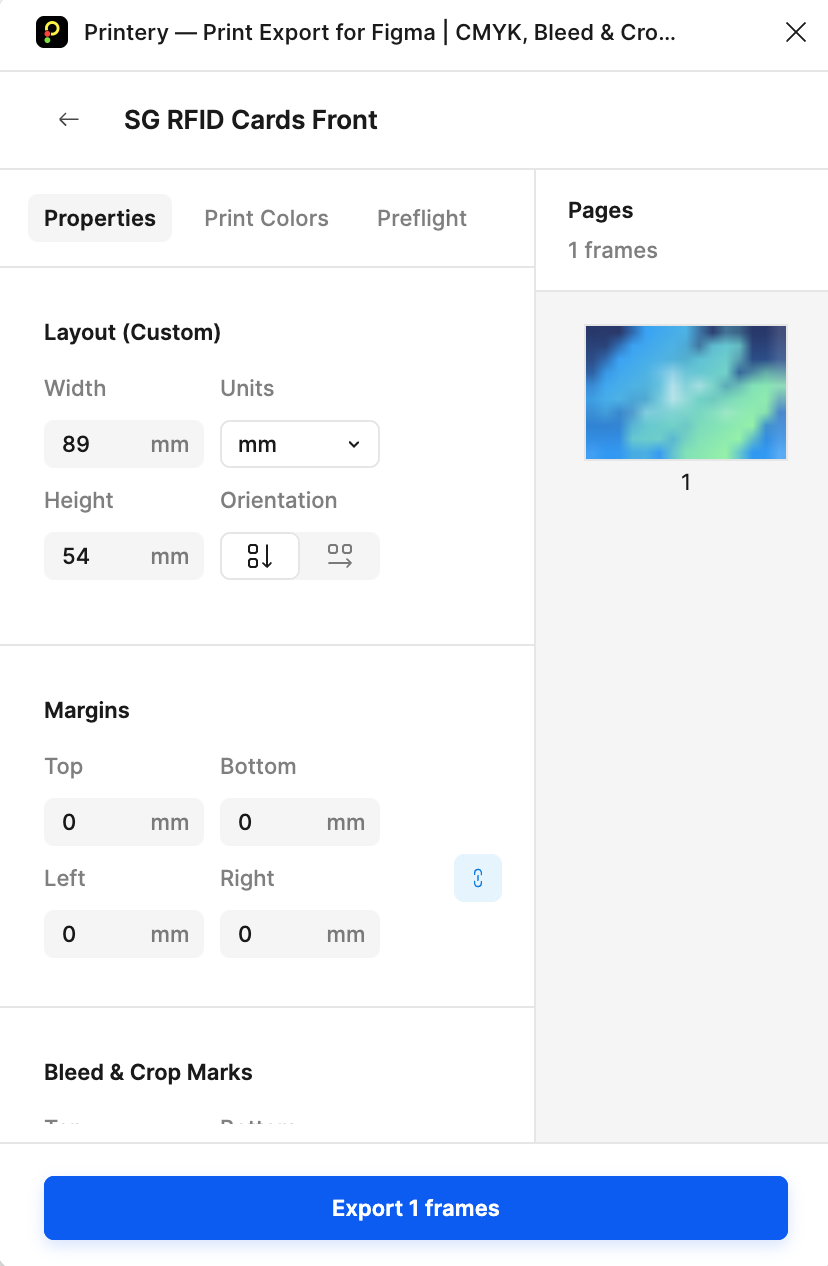
Set production specs before export so your print-ready PDF from Figma is ready on delivery.
- ✓Add bleed presets: 3mm, 5mm, or custom values.
- ✓Include crop marks on all corners automatically.
- ✓Configure safety zones to protect critical content.
- ✓Choose standard paper sizes: Letter, Legal, A1–A6, B5.
Best for: print shops, agencies, and teams preparing handoff files fast.Learn more →
Print for Figma with Printery: Multi-Page Export and DPI Control
Handle complete documents—not single artboards—with your Figma print workflow matched to the job.
- ✓Export multi-page PDFs in one run.
- ✓Support facing pages and spreads.
- ✓Batch export multiple pages or frames at once.
- ✓Use 300 DPI for commercial printing and lower DPI for drafts.
Best for: brochures, manuals, pitch decks, and high-volume production runs.Learn more →
Figma Export vs Printery
See why 33K+ designers choose Printery for professional print output
| Feature | Figma Native | Printery |
|---|---|---|
| CMYK PDF Export | ✗ | ✓ |
| ICC Profile Embedding | ✗ | ✓ |
| Bleed & Crop Marks | ✗ | ✓ |
| Safety Zones | ✗ | ✓ |
| Pantone / Spot Colors | ✗ | ✓ |
| Overprint Settings | ✗ | ✓ |
| Multi-Page PDF Export | ✗ | ✓ |
| DPI Control (300+) | Limited | ✓ Full |
| Paper Size Presets | ✗ | ✓ |
| Print-Ready Output | Manual setup | ✓ One-click |
How to Print from Figma
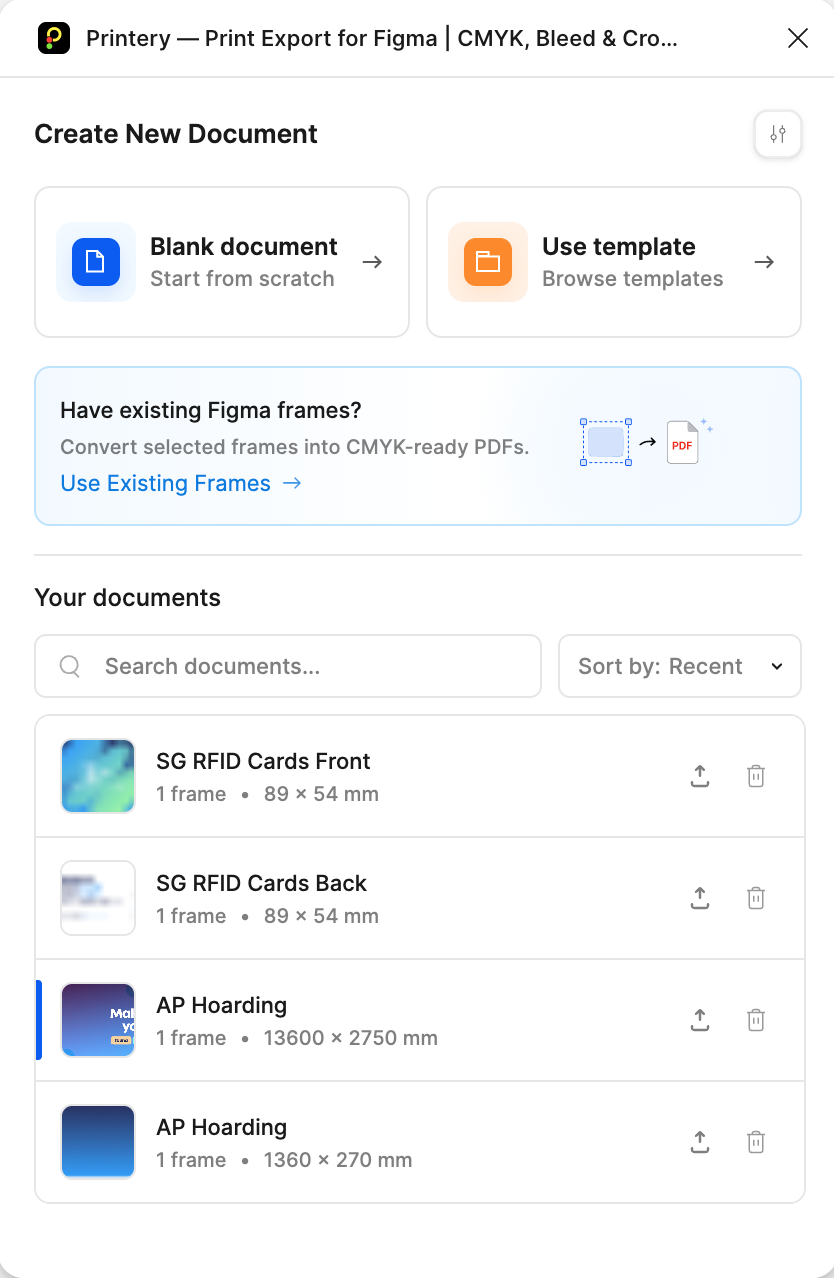
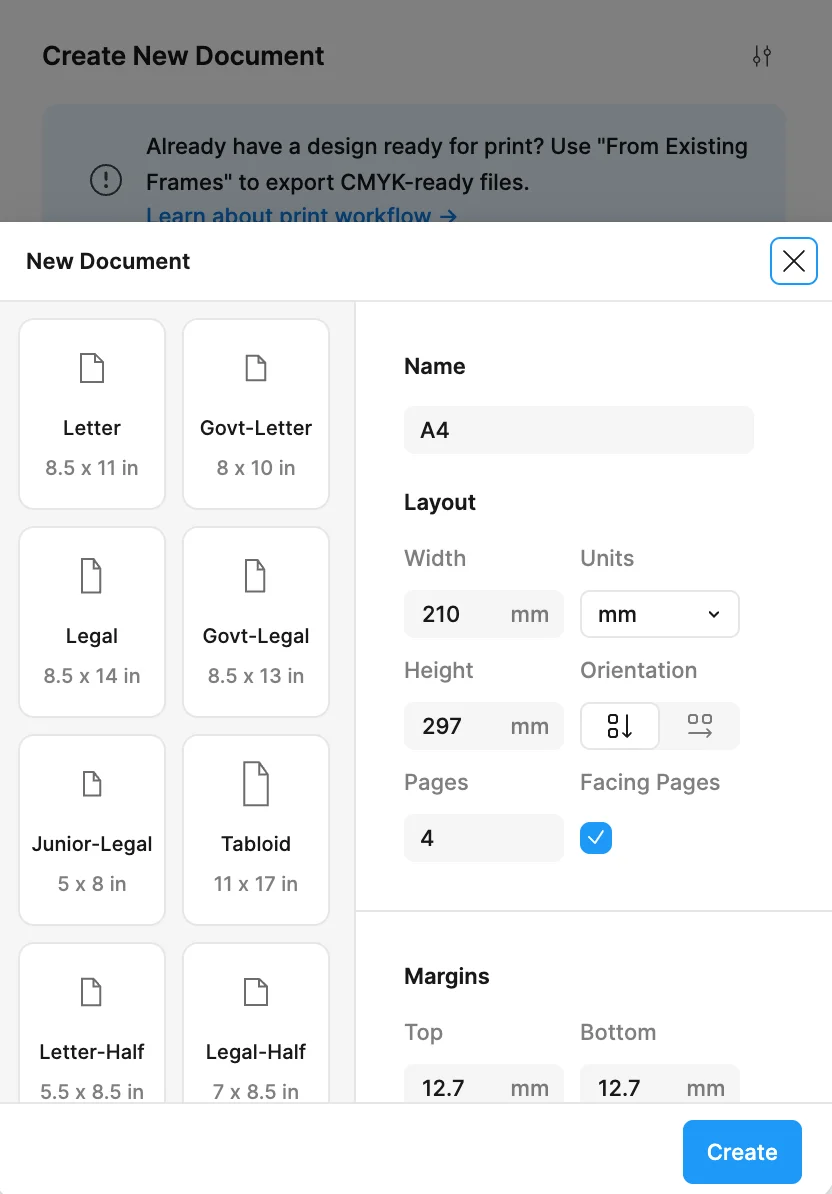
Create documents
Set up your print document with paper size, orientation, and page count.
Edit your design
Design your layout in Figma with bleed guides, safety zones, and color settings.
Export
Export print-ready CMYK PDFs with ICC profiles, bleed, and crop marks.

Mattéo Gonzale
✓ Verified Figma User
"I really appreciate your plugin—it's phenomenal! The plugin delivers exactly what I need for professional print production."
wjdh90246
✓ Verified Figma User
"Perfect for print! CMYK colors, bleed, and crop marks all work flawlessly. My printer loved the output."

Tobias
✓ Verified Figma User
"This is taking massive steps towards replacing InDesign! A great plugin with a surprising amount of options. I have high hopes for this one!"
Helio Trope
✓ Verified Figma User
"This plugin offers great functionality for a fair price and doesn't require an automatic subscription—very user-friendly."

Marcus W.
✓ Verified Figma User
"Finally a proper print workflow in Figma! The ICC profile support and color accuracy are exactly what our agency needed."
Join 33K+ designers
Try Printery Free →Simple, Transparent Pricing
Start free. Upgrade when you need full production features.
Free
Try Printery — it's free to start
- ✓5 document creations per week
- ✓2 PDF exports per month (CMYK or RGB)
- ✓Bleed, crop marks & safety zones
- ✓Preset page sizes & custom layouts
- ✓DPI checker (alerts & guidance)
- ✓Access to docs & Discord community
Pro (Monthly)
Unlock full production features
- ✓Unlimited documents & exports
- ✓ICC profiles & custom color mappings
- ✓Pantone & spot color density control
- ✓Overprint settings & multi-page PDFs
- ✓Priority email support (same-day)
Pro (Yearly)
$144/year
Founder price · only $4/month
- ✓Everything in Monthly Pro
- ✓Save 67% compared to monthly
- ✓Priority email support
- ✓Early access to new features
Print for Figma FAQ with Printery
What is Print for Figma?+
In short, Print for Figma means turning Figma files into printer-ready PDFs. Printery makes it easy by exporting CMYK PDFs, embedding ICC profiles, and adding bleed & crop marks—so you can send files to a print shop with confidence.
What features does Print for Figma offer?+
Printery adds the production export controls Figma is missing for real print work: CMYK PDF export with RGB→CMYK mapping, ICC profile embedding (e.g., ISO Coated v2, FOGRA39), Pantone spot colors and overprint support, bleed & crop marks, DPI control, and multi-page PDF export.
How much does Print for Figma cost?+
Printery is free to try with a Free plan for basic exports. Upgrade to Pro when you need advanced production features—CMYK + ICC workflows, spot colors/overprint, multi-page export, and more.
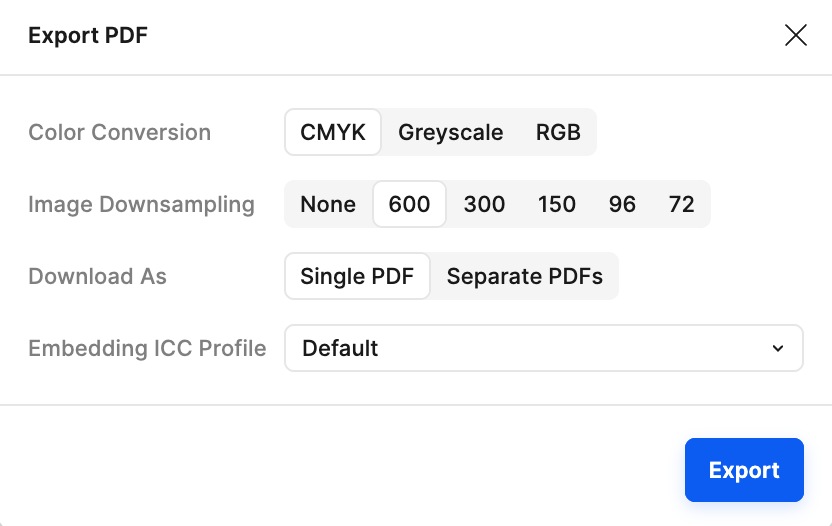
How to export CMYK PDF from Figma?+
Install Printery, select the frames/pages you want to export, then: 1) Choose Color mode: CMYK, 2) Pick an ICC profile your print shop uses (e.g., ISO Coated v2), 3) Set DPI (300 DPI is standard for commercial printing), 4) Enable bleed & crop marks, 5) Export your print-ready PDF.
Can I use Figma for print design?+
Yes—Figma works well for print design when you add the right export controls. Printery helps you handle the print-production requirements (CMYK/ICC, bleed, crop marks, DPI) so your files are ready for real printers—not just screens.
Do I still need InDesign for print design?+
For many projects, you may not—brochures, flyers, posters, packaging, and marketing materials can often be produced directly from Figma with Printery. InDesign is still a better fit for long-form documents (books, complex magazines) or highly specialized typography workflows. Use the tool that matches your project.
What ICC profile should I use?+
Most print shops can tell you which profile they prefer. Common choices include ISO Coated v2 (EU) and SWOP (US). If you're unsure, ask your printer first—then match it in Printery for consistent output.
What DPI should I use for printing from Figma?+
For commercial printing, 300 DPI is the standard for photos and raster artwork. Use lower DPI (150/72) only for drafts or when file size matters more than quality.
How do I cancel my Printery subscription?+
When you subscribed, you received a confirmation email from PayPro Global (our payment provider). That email includes a link to your Customer Panel where you can manage your subscription and cancel anytime. If you can't find the email, email us at support@cooderspro.com with your Order ID (from the PayPro receipt) and we'll help cancel it for you.
Ready to Print in Figma?
Start creating print-ready PDFs with CMYK, bleed, and crop marks. Print for Figma made easy with Printery.
Try Printery Free