
Bleed guide
Understanding Bleed Settings: Print for Figma vs InDesign & Illustrator
If you have used Adobe InDesign or Illustrator for print work, Print for Figma's bleed modes can feel surprising at first. This guide explains the two mental models, why both exist, and which one to use.
What Is Bleed in Print Design?
Bleed is the extra area around your final print size that extends beyond the trim line. It is a safety margin that gets cut off after printing.
- Full-coverage backgrounds reach the edge after trimming.
- No white borders appear if the guillotine cuts slightly off-center.
- Colors and images extend past the final product size.
Standard bleed
3 mm, or 0.125 inches, for most commercial print jobs.
Large format
5 mm, or about 0.2 inches, for demanding or oversized jobs.
The key concept
Bleed is not part of your final product size. It is extra area that exists so the printer can trim cleanly.
New to InDesign or Illustrator?
The next two sections compare Print for Figma to Adobe's professional design tools. If you have not used them before, you can skip straight to the Print for Figma model.
How InDesign Handles Bleed
InDesign uses a professional print workflow with clear layers: page size, bleed area, and margins. The page size always represents the final trim size.
Bleed Area (3 mm extension)
┌─────────────────────────────────────┐
│  Page Size / Final Trim             │
│  210 x 297 mm (A4)                  │
│  ┌───────────────────────────────┐  │
│  │  Margins / Safe Zone          │  │
│  │  Your content here            │  │
│  └───────────────────────────────┘  │
└─────────────────────────────────────┘
Full PDF size with bleed: 216 x 303 mm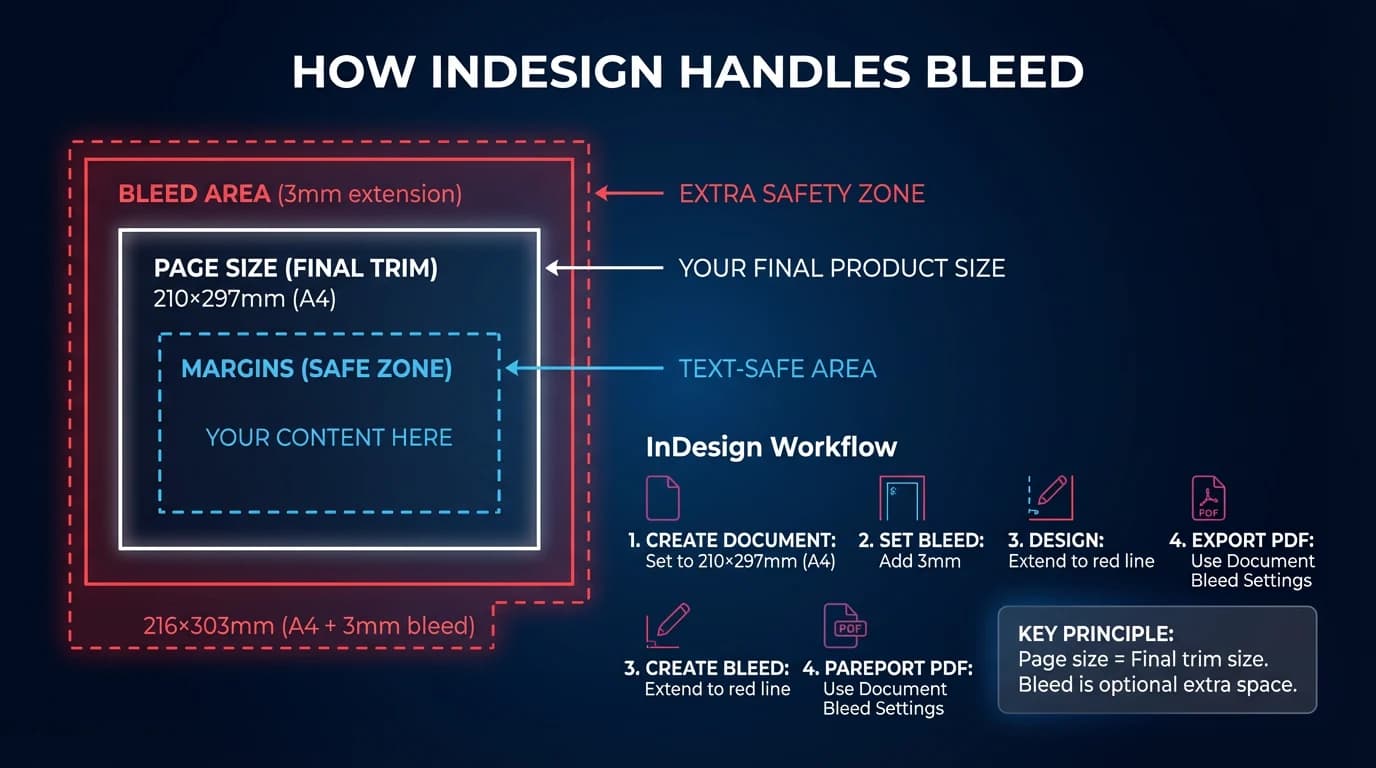
InDesign Workflow
- 1.Create the document at the final trim size, such as A4 at 210 x 297 mm.
- 2.Set bleed to 3 mm in Document Setup.
- 3.Extend background images and colors to the red bleed guideline.
- 4.Export the PDF with document bleed settings enabled.
Key principle
Page size always equals final trim size. Bleed is optional extra space added during export.
How Illustrator Handles Bleed
Illustrator is more flexible because it is used for both print and digital artwork. Objects can extend outside the artboard, and many users also create pre-sized artboards that already include bleed.
Red bleed guideline
┌─────────────────────────────────────┐
│  Artboard                           │
│  210 x 297 mm                       │
│                                     │
│  Objects can extend beyond          │
│  the artboard into the bleed.       │
└─────────────────────────────────────┘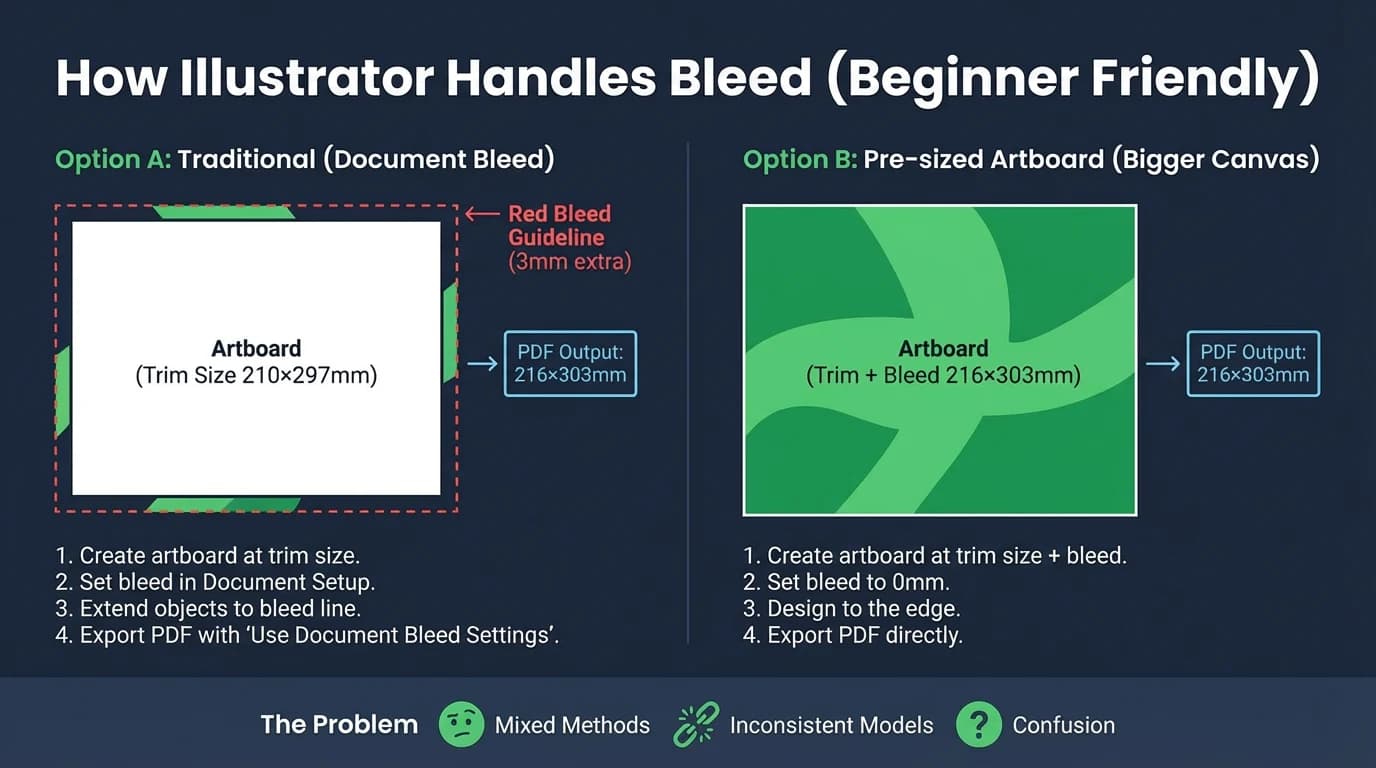
Option A: Traditional
- 1.Create the artboard at trim size.
- 2.Set bleed in Document Setup.
- 3.Extend objects to the bleed line.
- 4.Export with bleed settings.
Option B: Pre-sized Artboard
- 1.Create the artboard at trim size plus bleed.
- 2.Set bleed to 0 mm.
- 3.Treat the outer edge as the area that will be cut off.
- 4.Export the full-size PDF.
This flexibility is useful, but it also creates mixed mental models. Some Illustrator users think in trim size. Others think in full size including bleed.
How Print for Figma Handles Bleed
Print for Figma supports both mental models with two bleed modes: Expand and Contain.
Mode 1
Expand Mode: Recommended Default
Mental model: "I am giving you my final trim size. Please add bleed for me."
Input: 210 x 297 mm (A4 trim size)
Bleed: 3 mm

Plugin creates:
Frame: 216 x 303 mm
TrimBox: 210 x 297 mm
Bleed: 3 mm on every side

Export PDF: 216 x 303 mm with bleed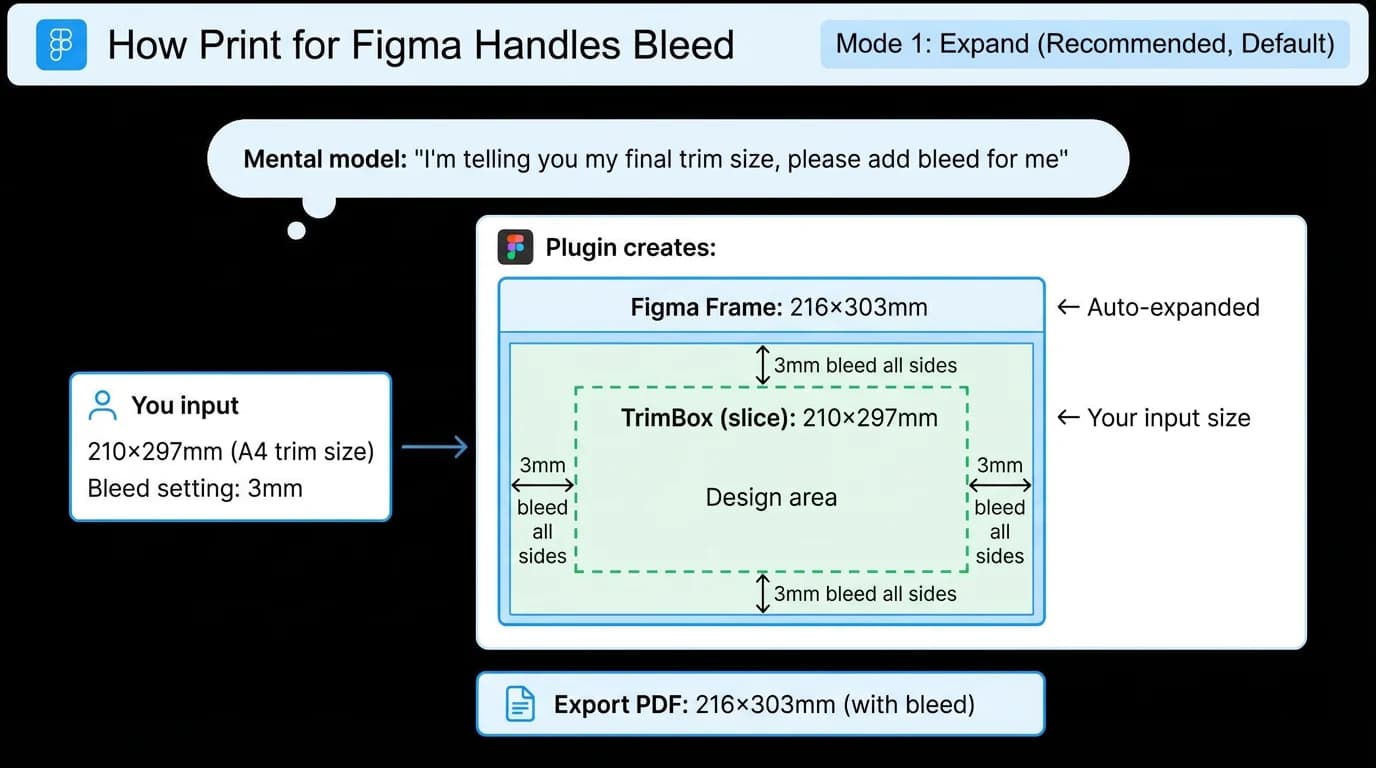
- Best for users coming from InDesign.
- Best for standard print workflows.
- Best when you think in final product size.
Mode 2
Contain Mode: Advanced
Mental model: "My frame is already full size including bleed. Calculate the trim for me."
Input: 216 x 303 mm (full size with bleed)
Bleed: 3 mm

Plugin creates:
Frame: 216 x 303 mm
TrimBox: 210 x 297 mm
Bleed: outer 3 mm of the frame

Export PDF: 216 x 303 mm with bleed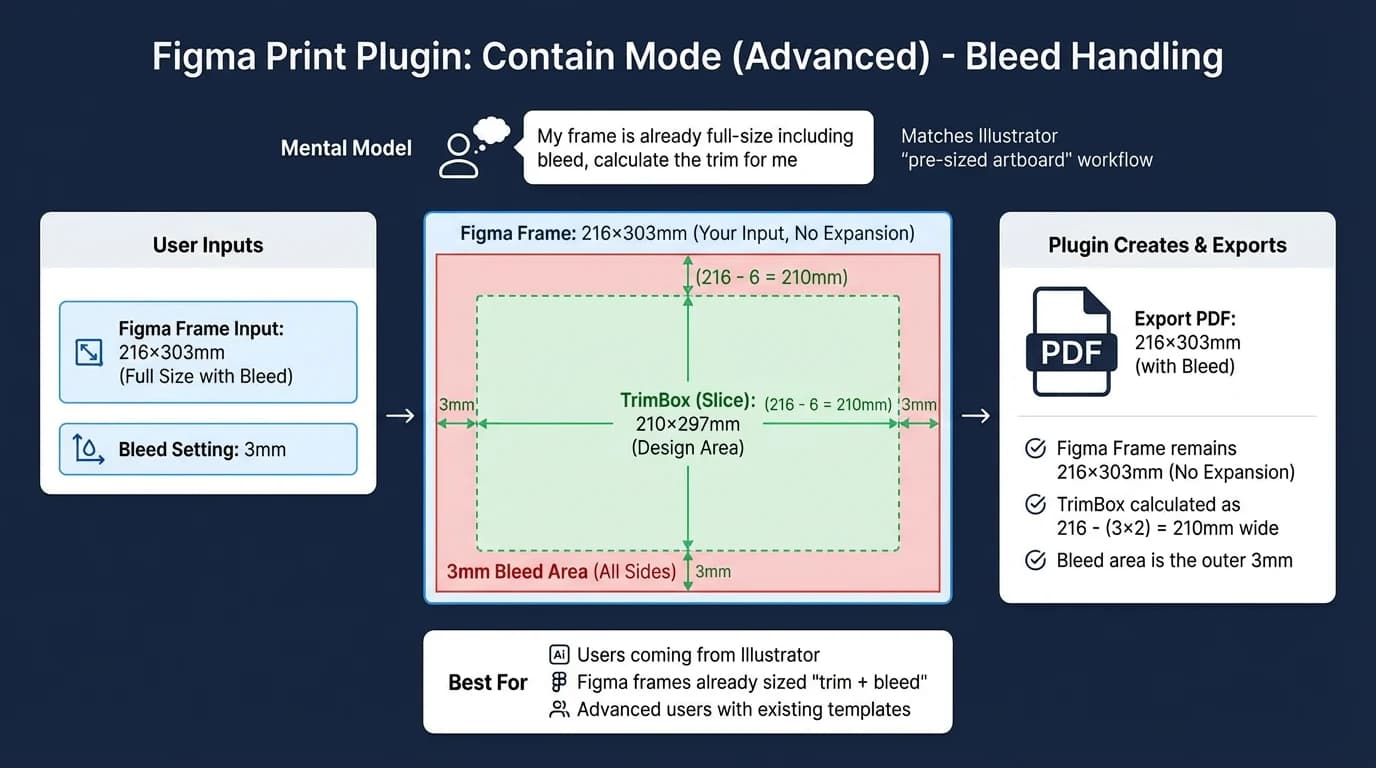
- Best for users coming from Illustrator with pre-sized artboards.
- Best when Figma frames are already sized as trim plus bleed.
- Best for advanced users maintaining existing templates.
Side-by-Side Comparison
| Aspect | InDesign | Illustrator | Expand | Contain |
|---|---|---|---|---|
| Input means | Final trim size | Usually trim size | Final trim size | Full size |
| Bleed handling | Added externally | Red guideline | Auto-expand frame | Calculate trim inside |
| Frame/page size | Trim size | Varies | Trim + bleed | Input size |
| Export PDF size | Trim + bleed | Trim + bleed | Trim + bleed | Trim + bleed |
| Best for | Professional print | Graphic design | Most users | Existing full-size templates |
Visual Guide: What You See vs What You Get
Expand Mode Example
Goal: business cards at 90 x 50 mm

Input:
Width: 90 mm
Height: 50 mm
Bleed: 3 mm
Mode: Expand

Figma creates:
Frame: 96 x 56 mm
TrimBox: 90 x 50 mm

PDF exports:
PDF size: 96 x 56 mm
Final trim: 90 x 50 mm
Contain Mode Example
Goal: frame is already 96 x 56 mm

Input:
Width: 96 mm
Height: 56 mm
Bleed: 3 mm
Mode: Contain

Figma creates:
Frame: 96 x 56 mm
TrimBox: 90 x 50 mm

PDF exports:
PDF size: 96 x 56 mm
Final trim: 90 x 50 mm
Same output, different assumptions
Both examples create a 96 x 56 mm PDF that trims to 90 x 50 mm. The only difference is whether your input means final trim size or full size with bleed.
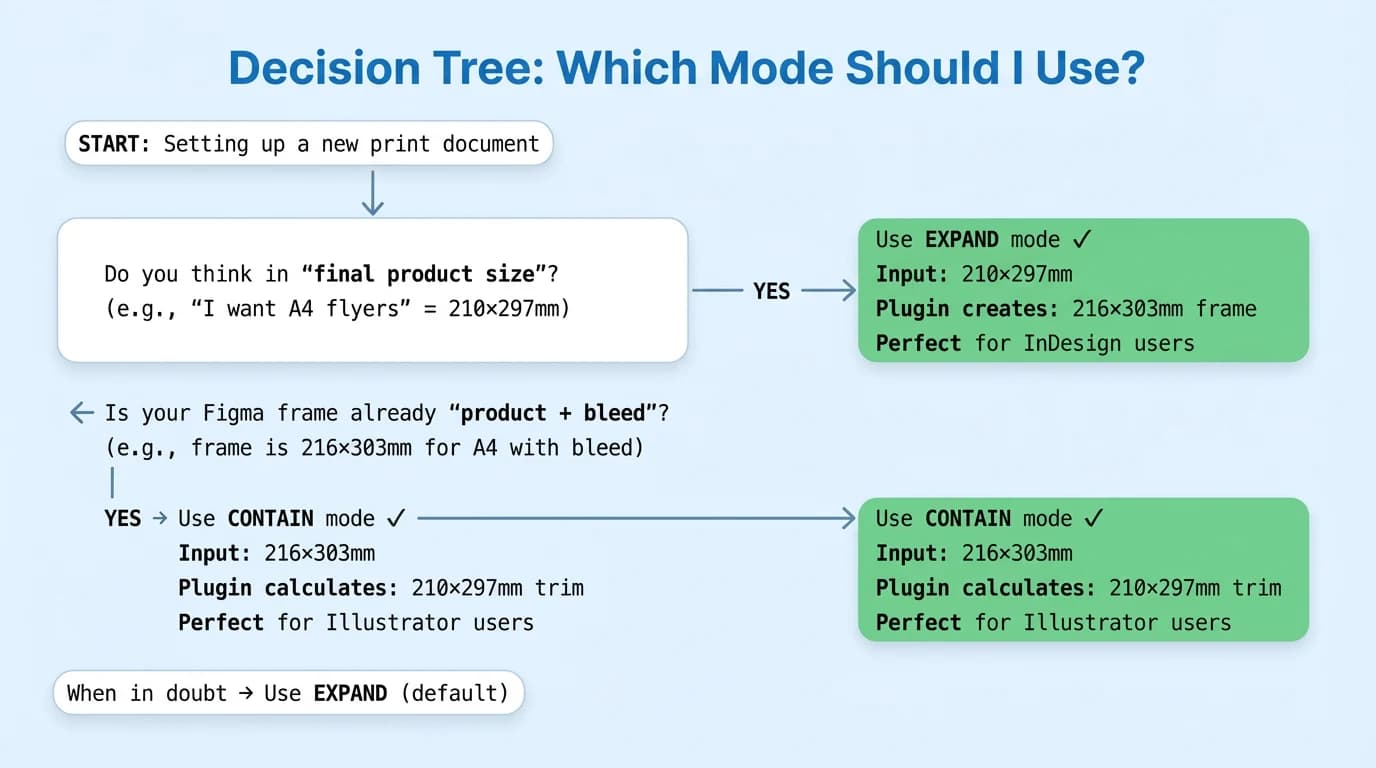
Decision Tree: Which Mode Should I Use?
START: Setting up a print document
|
|-- Do you think in final product size?
|   Example: "I want A4 flyers" = 210 x 297 mm
|   |
|   YES -> Use EXPAND mode
|          Input: 210 x 297 mm
|          Plugin creates: 216 x 303 mm frame
|
-- Is your Figma frame already product + bleed?
    Example: frame is 216 x 303 mm for A4 with bleed
    |
    YES -> Use CONTAIN mode
           Input: 216 x 303 mm
           Plugin calculates: 210 x 297 mm trim

When in doubt -> Use EXPAND mode
Use Expand Mode When
- You think in final product dimensions.
- You are coming from InDesign.
- You are starting a new project.
- You are unsure which mode to choose.
Use Contain Mode When
- Frames are already sized as trim plus bleed.
- You are migrating Illustrator templates.
- You understand the inverse calculation.
- You need to preserve existing full-size frames.
Common Scenarios Explained
I input 210 x 297 mm, but the frame becomes 216 x 303 mm. Is that wrong?
No. That is correct in Expand mode. Your input is the final trim size, and the plugin adds 3 mm bleed on every side.
My artboard dimensions make no sense. Why is the frame larger than the TrimBox?
The frame is the canvas you work on, including the bleed safety zone. The TrimBox is where the guillotine cuts. The space between them is the bleed.
I am coming from Illustrator and my existing templates do not match. What should I do?
If your Illustrator artboards already include bleed, switch to Contain mode and enter the full frame size. If you are starting fresh, use Expand mode and enter the final trim size.
Best Practices
For InDesign Users
Use Expand mode. Enter final trim dimensions and let Print for Figma add bleed around them.
For Illustrator Users
Use Expand mode for new work, or Contain mode when migrating pre-sized artboards that already include bleed.
For New Users
Default to Expand mode. It matches professional print workflows and keeps input size equal to final product size.
Real-World Examples
A4 Flyer
Expand mode:
Input: 210 x 297 mm
Bleed: 3 mm
Frame: 216 x 303 mm
TrimBox: 210 x 297 mm
PDF: 216 x 303 mm
Final flyer: 210 x 297 mm

Contain mode:
Input: 216 x 303 mm
Bleed: 3 mm
Frame: 216 x 303 mm
TrimBox: 210 x 297 mm
PDF: 216 x 303 mm
Final flyer: 210 x 297 mm
US Letter Poster
Expand mode:
Input: 8.5 x 11 in
Bleed: 0.125 in
Frame: 8.75 x 11.25 in
TrimBox: 8.5 x 11 in
PDF: 8.75 x 11.25 in

Contain mode:
Input: 8.75 x 11.25 in
Bleed: 0.125 in
Frame: 8.75 x 11.25 in
TrimBox: 8.5 x 11 in
PDF: 8.75 x 11.25 in
Frequently Asked Questions
Which bleed mode should I use?
Use Expand mode for most cases. It matches the InDesign workflow: input your final trim size, then let the plugin add bleed automatically.
Do both modes export the same PDF?
Yes. Both modes can export identical PDFs with bleed. The difference is only what your input dimensions represent.
Why does my frame size not match my input?
You are probably in Expand mode. A 210 mm input with 3 mm bleed becomes 216 mm because bleed is added to both sides: 210 + 3 + 3.
Can I switch modes for an existing document?
Yes, but the TrimBox relationship changes. Choose a mode at the start of a project and stick with it when possible.
What if I do not need bleed?
Set bleed to 0 mm. With zero bleed, Expand and Contain behave the same way: the frame and TrimBox match your input size.
Summary: The Complete Picture
Print for Figma's two modes solve a real workflow problem: different design tools teach different ways to think about bleed.
Expand Mode
Use it when your input means final trim size. The plugin adds bleed around it. This is the recommended default.
Contain Mode
Use it when your input already includes bleed. The plugin calculates the final trim inside your frame.
- Bleed is always extra space beyond the final product size.
- Both modes can export the same final PDF.
- Frame size may be larger than final product size when bleed is involved.
- When in doubt, use Expand mode.
Export Figma Files with Correct Bleed
Printery adds bleed, crop marks, CMYK conversion, and print-ready PDF export directly inside Figma.
Try Printery Free